Android App Manual
Senda Snap v1.0 - Complete guide for using the Android mobile application. Learn all features and get the most out of the app.
Welcome to Senda Snap
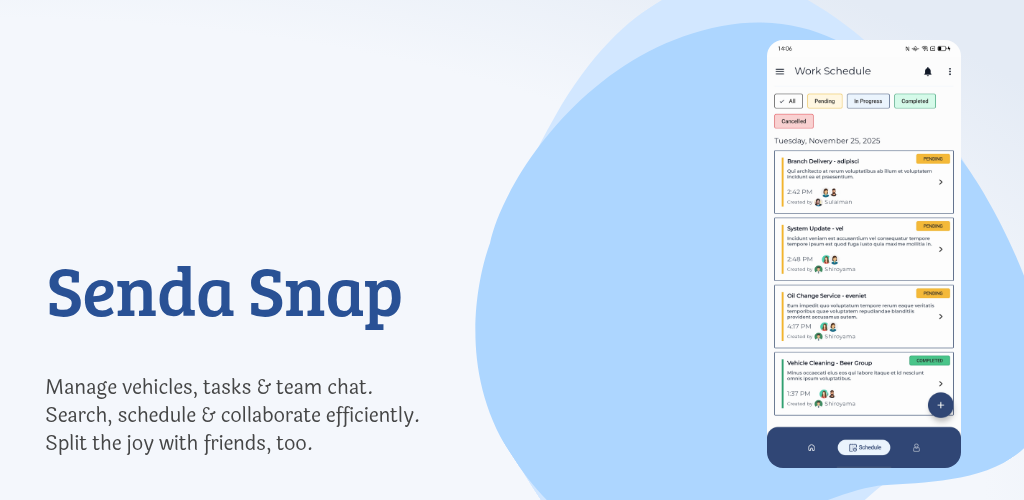
Senda Snap is a comprehensive mobile application designed for vehicle management, task scheduling, and team collaboration. This manual will guide you through all features and help you get the most out of the app.
Key Features
- Vehicle Search & Photo Upload
- Task & Schedule Management
- Team Communication (Chat)
- Profile & Settings
- Search History
Vehicle Search & Photo Upload
Key Features
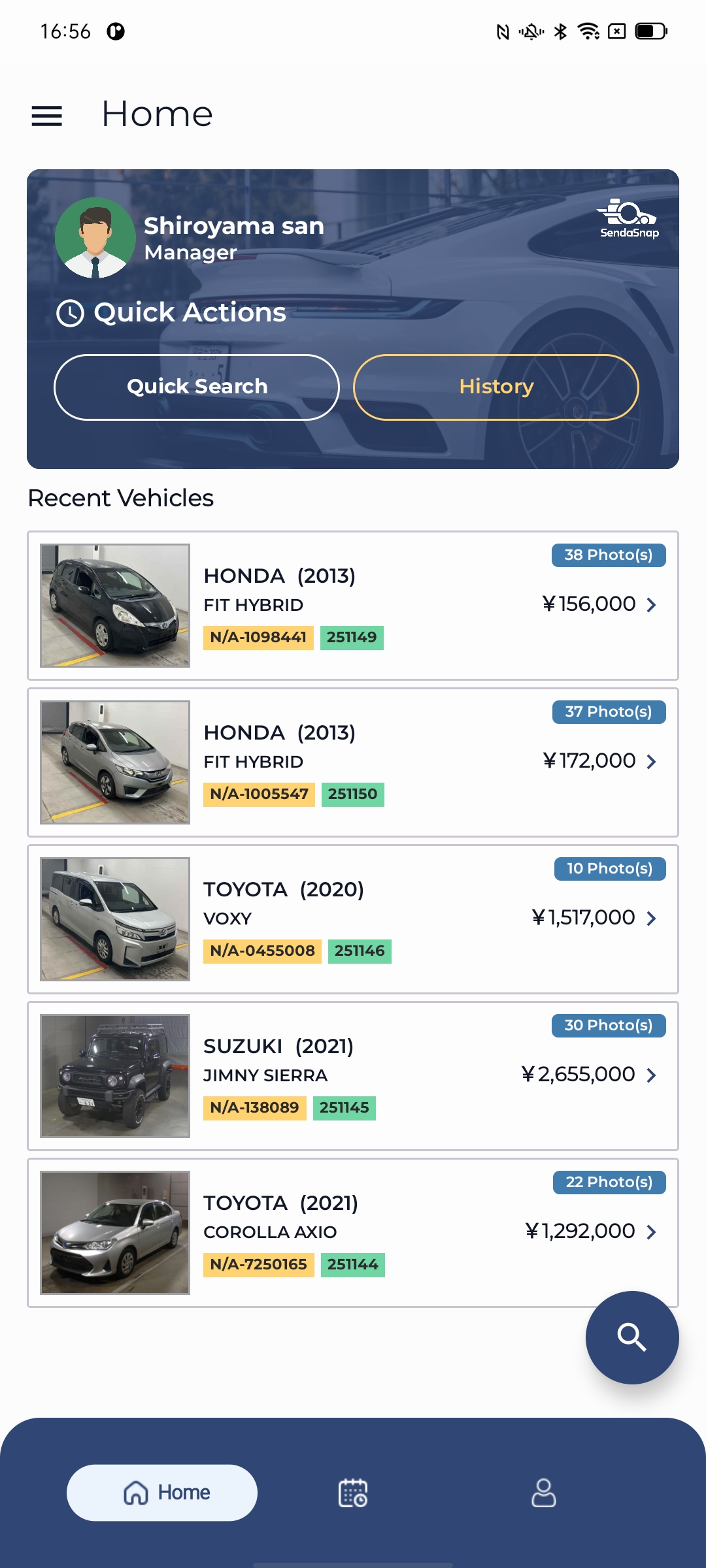
- Search vehicles by vehicle id or chassis number
- View comprehensive vehicle details
- Add vehicle photos
- Access recent vehicles
How It Works
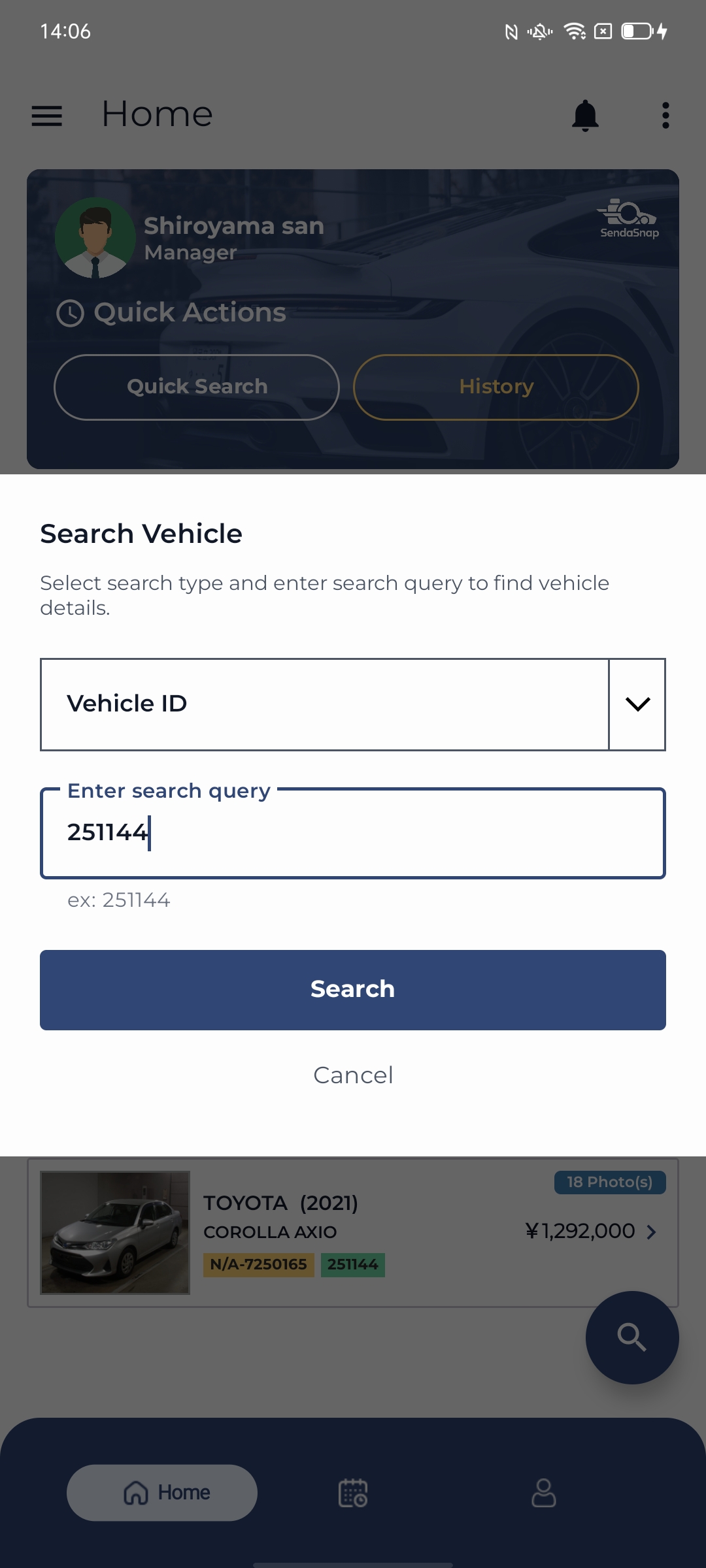
Click on search button then from dropdown menu select an option to search by vehicle id or chassis number
Enter the vehicle id or chassis number in second input field, please make sure to enter the correct vehicle id or chassis number
Click on search button to search for the vehicle
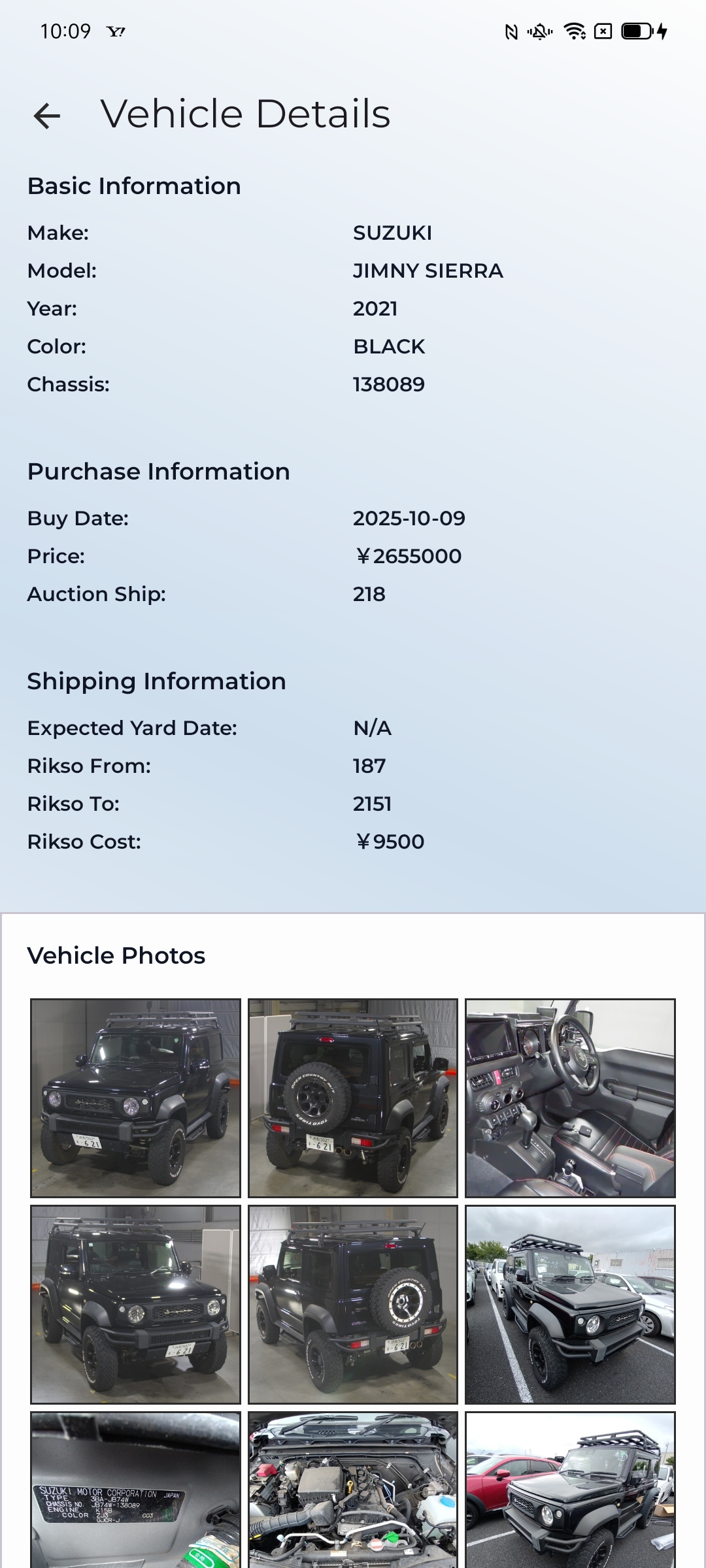
On Detail page, you can see basic information, purchase information, shipping information and existing photos of the vehicle
User is not allowed to edit the vehicle information from the android app, but user can add photos to the vehicle
To edit the vehicle information, user needs to go to AVIS and edit the vehicle information
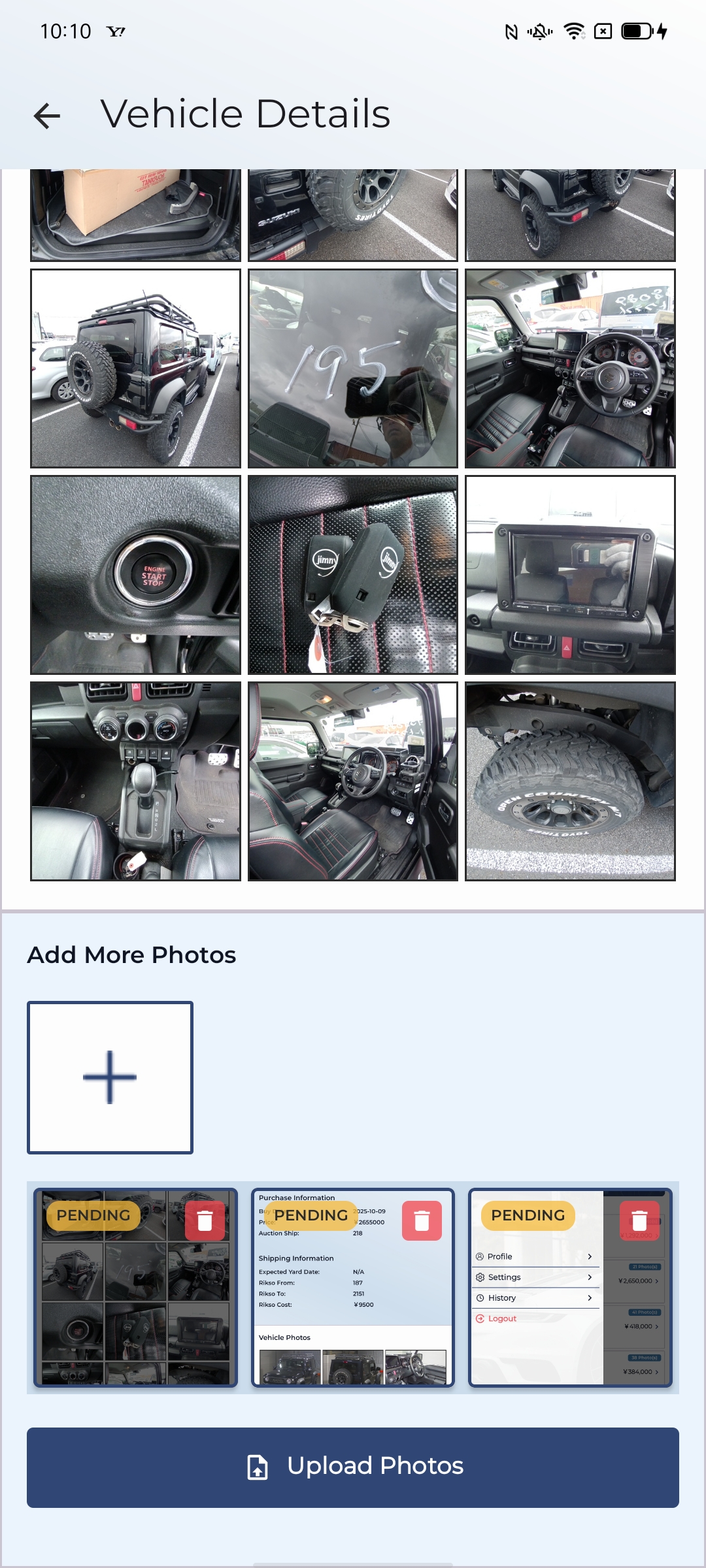
At the bottom of the page, you will see a plus icon button to add more photos to the vehicle
After clicking the plus icon button, user will be redirected to the camera or gallery to select a photo to upload, User can add multiple photos to the vehicle
Clicking in upload button will upload the photo to the vehicle
Task & Schedule Management
Key Features
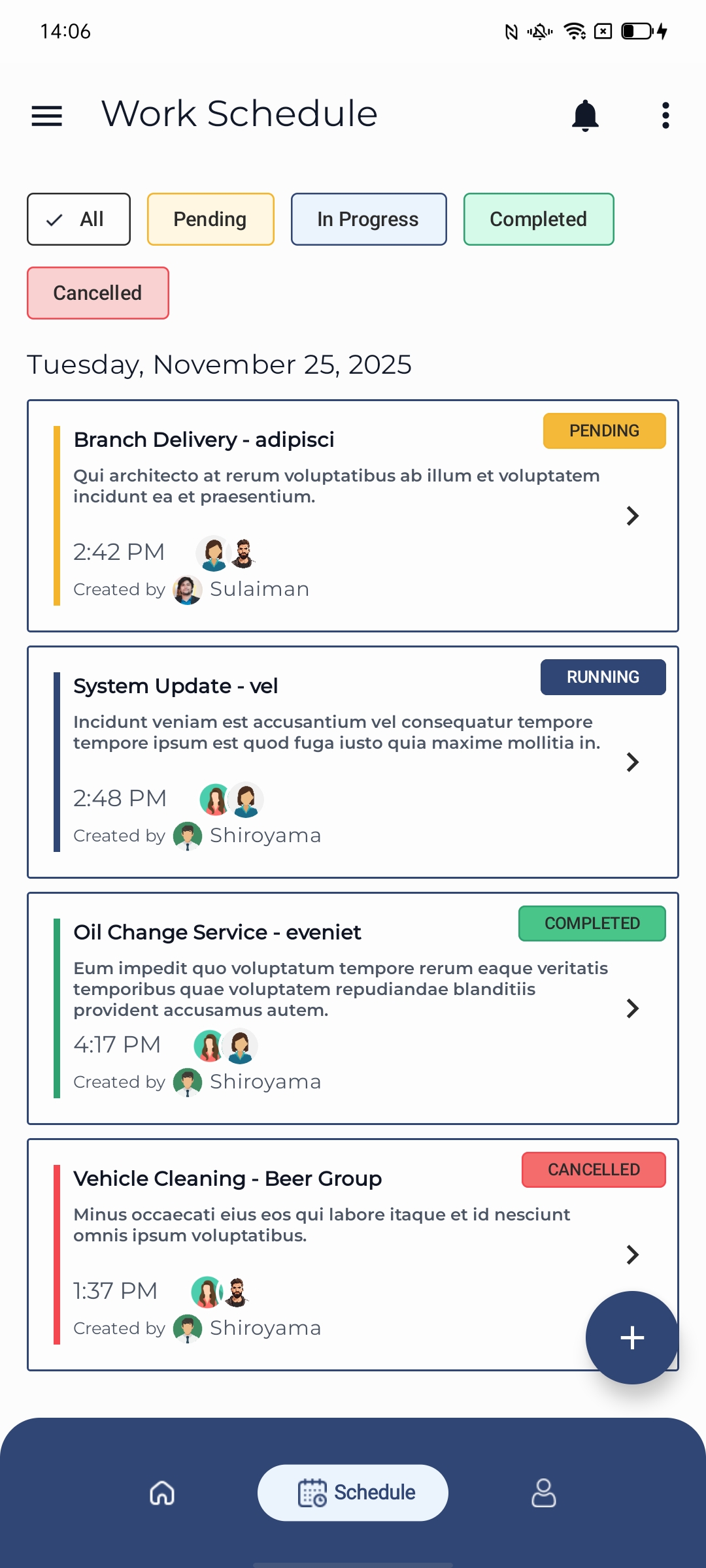
- Create new schedules with title, description, date, time, and assign team members
- View all schedules organized by date, filter by status, priority, or date range
- Update task status, edit task details, and manage task assignments efficiently
- Receive push notifications for task assignments, reminders, and updates
How It Works
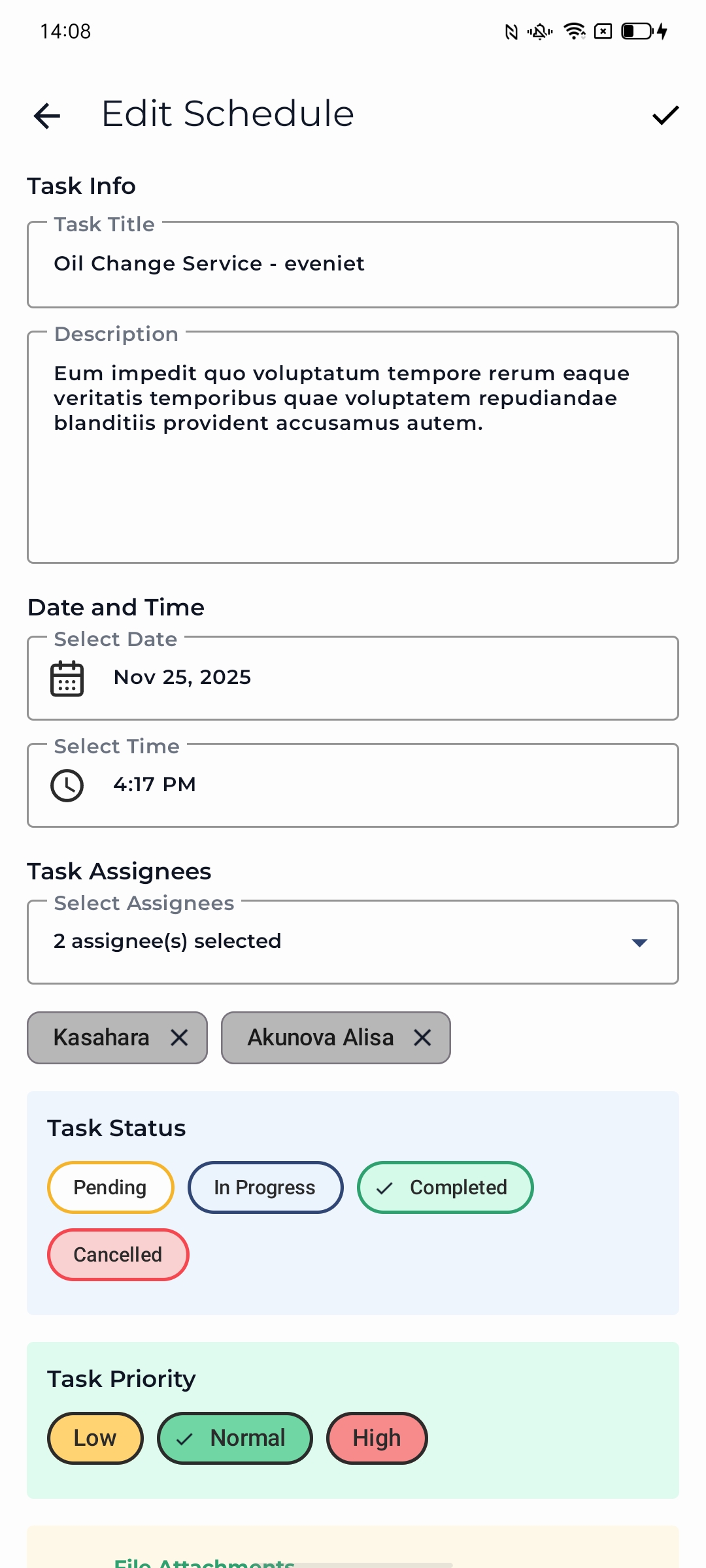
Navigate to the Task Dashboard and tap the create button to start a new schedule
Fill in the schedule details including title, description, date, time, and assign team members
Save the schedule to create the task and automatically generate a group chat for assigned members
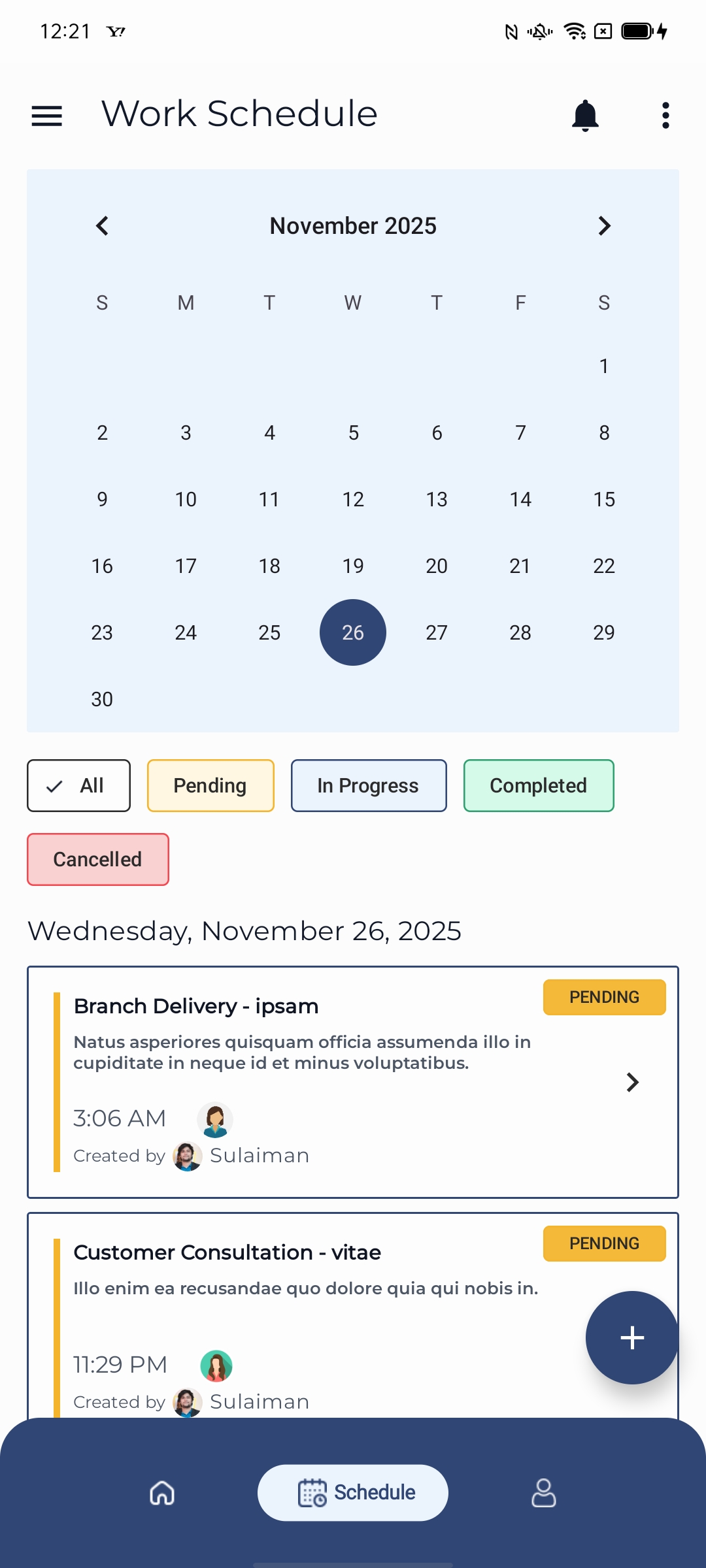
Use the calendar view or date filter to view tasks for specific dates
Filter tasks by status (pending, running, completed, cancelled) from the filter buttons
View filtered task list organized by date and status for easy management
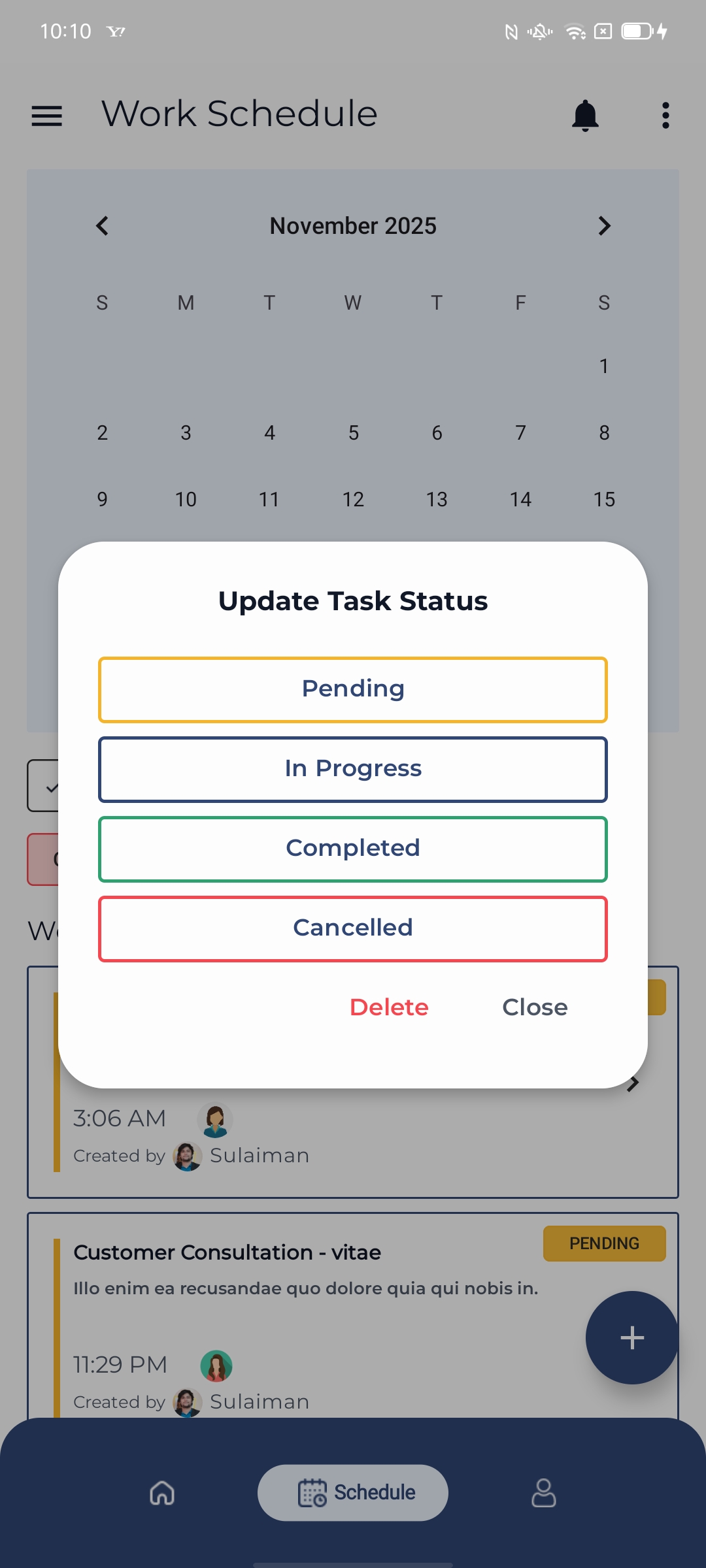
Long press on a task from the list to show the options menu
Select the status update option to open the alert dialog with available status options
Delete the task by clicking the delete option from the options menu
Team Communication (Chat)
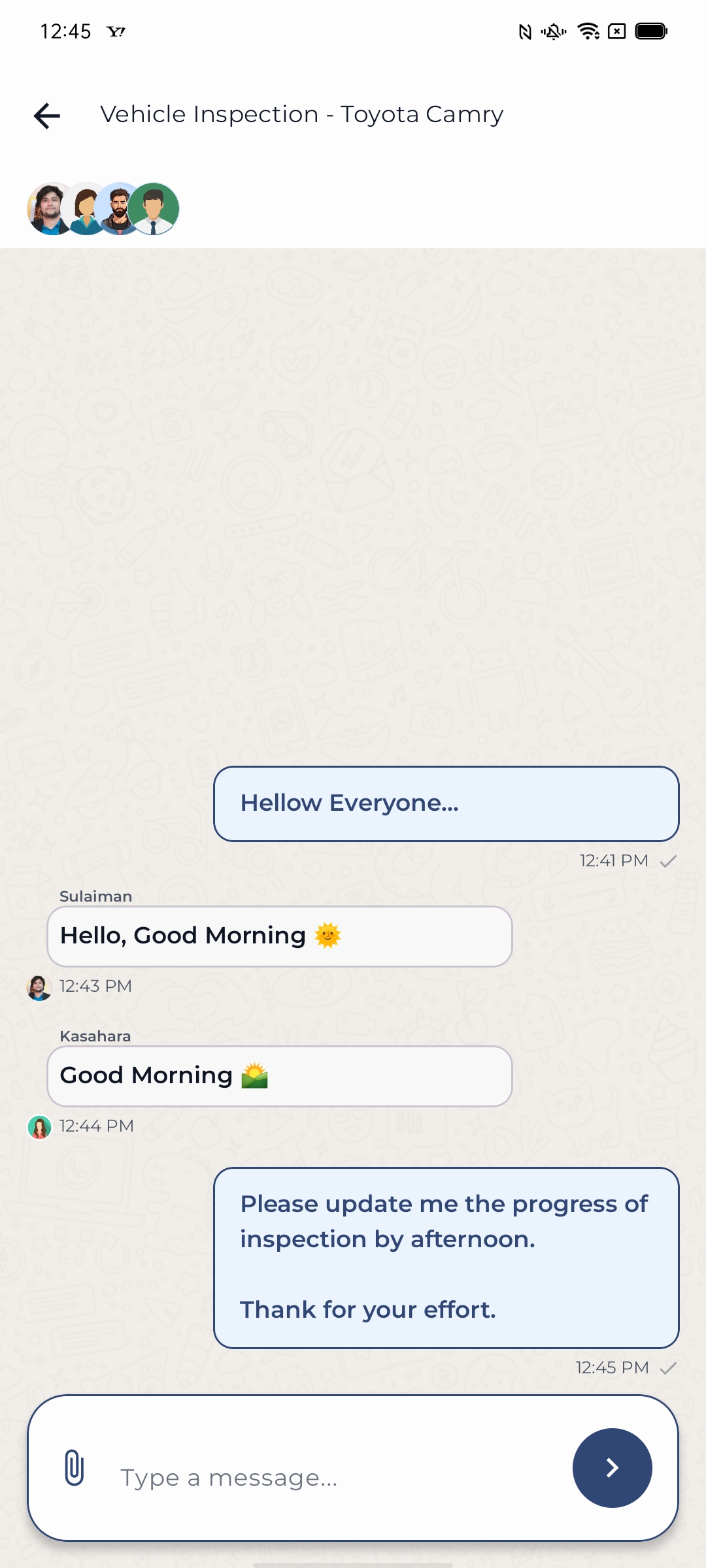
Key Features
- Messages are delivered instantly to all participants in group or individual chats
- Automatically created group chats for schedules, including all assigned team members
- All chat messages are saved and accessible for future reference with unread indicators
How It Works
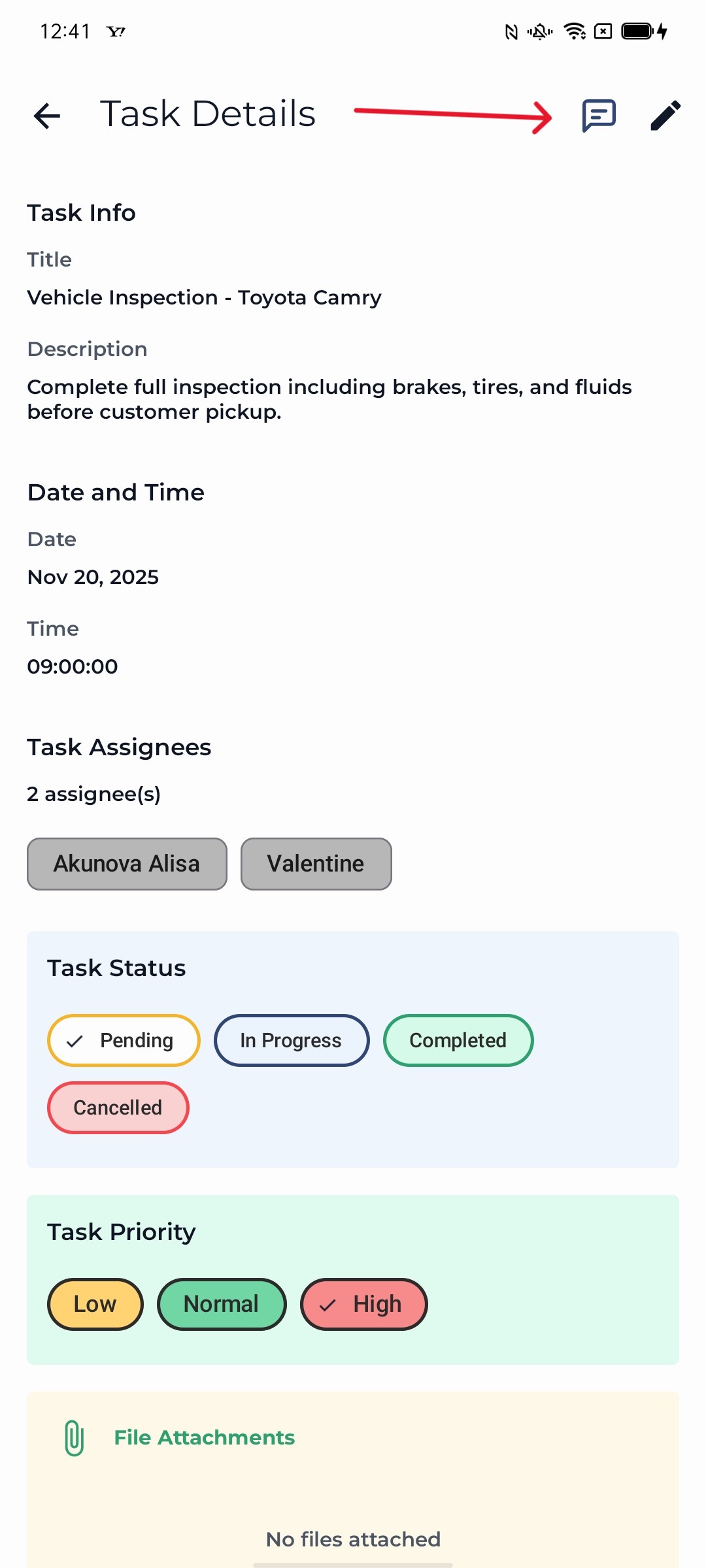
Click on the chat icon from top right corner of Task Details page
Group chats are automatically created for schedules with all assigned team members
Unread message indicators show the number of unread messages in each chat
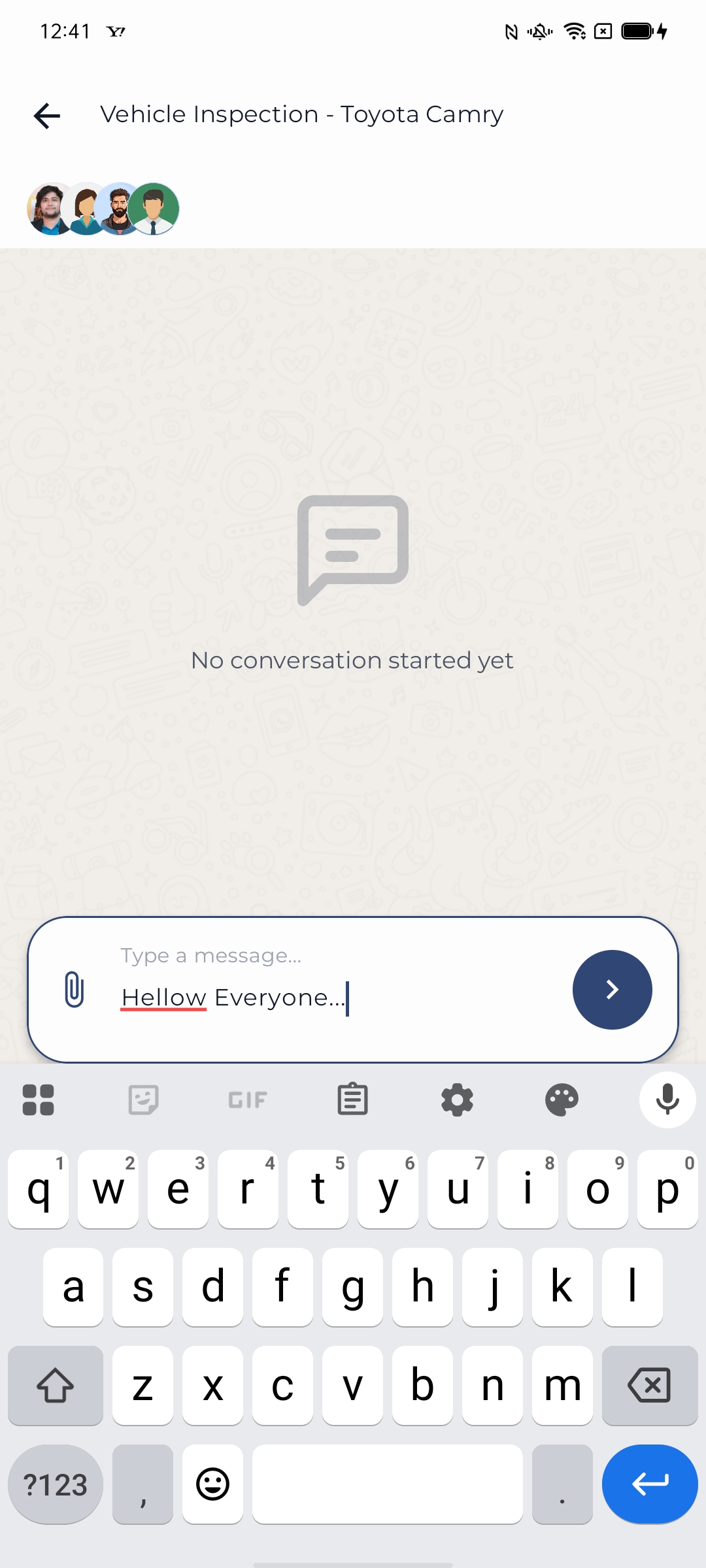
Send text messages instantly to team members in group or individual chats
Messages are delivered in real-time to all participants
View message timestamps and read receipts for better communication tracking
Tap the attachment icon to share images is not functionality in this version
Troubleshooting
Cannot Login
- Verify your email and password are correct
- Check your internet connection
- Try resetting your password if forgotten
- Ensure the app is updated to the latest version
Vehicle Search Not Working
- Check your internet connection
- Verify you entered the correct chassis number or identifier
- Try refreshing the search
- Clear app cache if the issue persists
Images Not Uploading
- Check your internet connection
- Ensure image size is under 5MB
- Grant storage permission if prompted
- Try compressing the image before uploading
Chat Messages Not Sending
- Check your internet connection
- Verify you have permission to send messages in the chat
- Try closing and reopening the chat
- Restart the app if the issue persists
App Crashes or Freezes
- Close and restart the app
- Clear app cache from device settings
- Update to the latest version of the app
- Restart your device if the problem continues
- Contact support if the issue persists
Support & Contact
Getting Help
- sulaiman@sendajapan.com
- +819019735910
- sendajapan.com
Reporting Issues
- Document the issue with screenshots if possible
- Note the steps that led to the problem
- Include your device model and Android version